Use recurring invoices for a service that repeats on an agreed schedule. Start with draft creation when the amount or scope still needs review. Automatic invoicing, automatic email, and automatic payment are separate decisions. Turning on one does not mean the customer has paid.
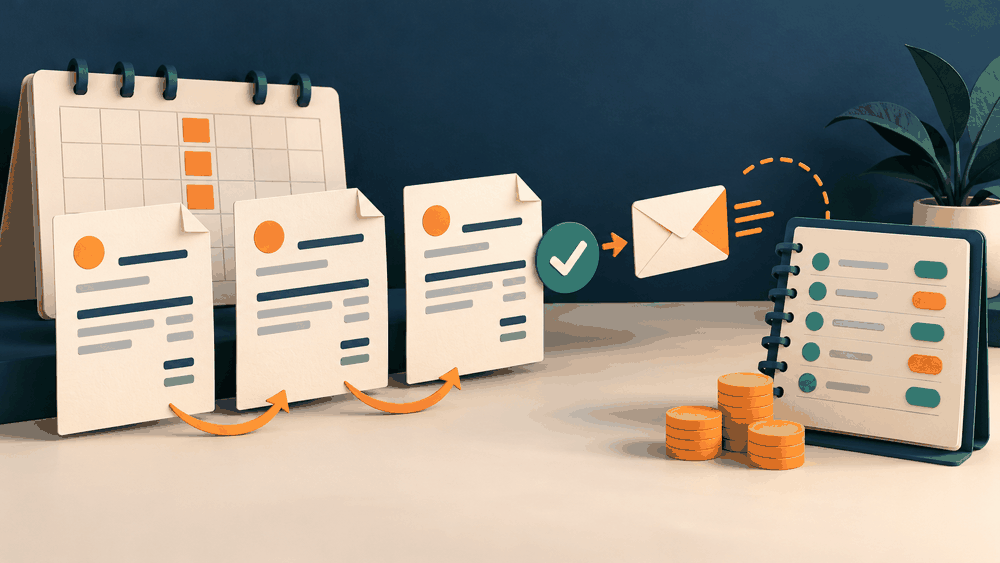
This guide is for freelancers setting up a repeat billing workflow in Zoho Invoice. It is based on official US help documentation checked October 22, 2026, not a live account test. Interface and payment availability may vary by region. The example below is illustrative, and the image is an AI-generated concept illustration.
Which billing mode should you use?
| Situation | Practical starting mode | Review before sending |
|---|---|---|
| Same service and fee each month | Draft first; consider scheduled sending after validation | Service dates and active agreement |
| Base fee plus variable extras | Draft with manual review | Approved extras and quantities |
| Project milestones | Milestone review rather than blind recurrence | Whether the milestone has been met |
| Customer payment method on file | Assess charging separately | Authorization, supported gateway and failure handling |
Set up the recurring profile
Zoho’s creation guide says to enable Recurring Invoices in General Preferences if the module is hidden. Create a profile, select the customer, then set the repeat interval, start date, end condition, payment terms, and line items. Verify the organization time zone rather than relying on your laptop clock.
The documentation distinguishes three preferences: generating drafts for manual sending, creating and sending invoices, or creating, charging, and sending. Check the individual profile as well as the organization defaults. Do not enable charging merely to make an invoice recurring.
Prepare this billing control sheet
Before configuring the software, write down the customer billing contact, service period, fee, recurrence date, due date rule, end date, and person who approves exceptions. Keep payment credentials in the payment provider’s approved system, not in a spreadsheet or invoice note.
Example: a fictional design maintenance service costs $600 per monthly service period. Two separately approved extra hours at $50 add $100. A reviewed invoice would show $700 before any applicable tax or adjustment. If the extra hours are not approved, do not silently place them in every future cycle.
Test the first cycle without contacting a client
Create the profile in draft mode using appropriate test or internal sample details. Inspect the generated document before any external send. Confirm that the billing contact, currency, line items, service dates, due date, and recurrence schedule match your written control sheet.
Check whether a draft notification is enabled: keeping an invoice as a draft does not by itself establish that every notification is disabled. Also inspect existing reminders and integrations so that you do not send two messages for the same bill.
Do not create duplicate profiles while diagnosing a missing invoice. Search by customer, profile name, and billing period first. Record the profile identifier and the last cycle you reviewed so the next operator can distinguish “not created,” “draft,” “sent,” and “paid.”
Use a monthly exception review
Before the next cycle, check for paused work, cancellations, fee changes, disputed extras, existing credits, and a replaced billing contact. Stop the old schedule when the underlying arrangement ends. An automated billing tool does not decide whether a charge is justified.
After sending, reconcile actual payment against the invoice balance. A sent invoice is a receivable, not money available to spend. For partial payments and remaining balances, use the method in our invoice tracker guide.
Common problems and the next check
No invoice appeared: inspect the profile dates, active state, and organization time zone before creating another profile. Invoice exists but was not emailed: check whether draft mode is intended. Email sent but no payment: check the due date and actual payment record. Wrong amount: pause the next send and correct the applicable profile and document through the normal accounting workflow.
Keep a small log: billing period, expected amount, generated invoice, send status, received amount, balance, and next action. This makes automation auditable and helps you see exceptions before they become repeated client problems.
Choose the software after choosing the workflow
If you are still selecting a tool, compare the broader requirements in Wave vs Zoho Invoice. Check current regional limits and payment costs before committing. This page uses ordinary official links and does not claim an approved affiliate relationship.
Next action: prepare one recurring-profile control sheet and validate one draft cycle before enabling external delivery. This can reduce repetitive entry, but no time saving, collection rate, or income outcome is guaranteed.
Official sources
Creating recurring invoices and Recurring invoice preferences. Recheck these instructions and your account settings before activating a schedule.